Raible's Wiki
Raible Designs
Wiki Home
News
Recent Changes
AppFuse
Homepage- Korean
- Chinese
- Italian
- Japanese
QuickStart Guide
- Chinese
- French
- German
- Italian
- Korean
- Portuguese
- Spanish
- Japanese
User Guide
- Korean
- Chinese
Tutorials
- Chinese
- German
- Italian
- Korean
- Portuguese
- Spanish
Other Applications
Struts ResumeSecurity Example
Struts Menu
UserPreferences
Referenced by
Articles
Articles_cn
Articles_de
Articles_pt
Articles_zh
CreateActions
CreateActions_de
CreateActions_it
CreateActions_pt
CreateActions_zh
...and 1 more
![[RSS]](https://raibledesigns.com/wiki/images/xml.png "Aggregate the RSS feed")

Hide Menu
JSFBeans |
|
| Your trail: | |
This is version 15.
It is not the current version, and thus it cannot be edited.
[Back to current version]
[Restore this version]
Part III: Creating JSF Beans and JSPs - A HowTo for creating JSF
Beans and JSPs in an AppFuse project.
- This tutorial depends on Part II: Creating new Managers.
About this Tutorial
This tutorial will show you how to create JSF Beans and JSPs. It'll also demonstrate writing a JUnit Test to test PersonForm. The Managed Bean we create will talk to the PersonManager we created in the Creating Managers tutorial. In most web frameworks, the controller logic is contain in an "Action" of some sort. However, with JSF, they're commonly referred to as "Managed Beans". The methods within these beans are called actions. This tutorial is not going to teach you a whole lot about how JSF works, but it will get you up and running quickly with it. If you want a more in-depth learning experience, I suggest you read David Geary's Core JSF. I had it close by my side and used it frequently while integrating JSF into AppFuse. Thanks for the help David and Cay (co-author)!
- I will tell you how I do stuff in the Real World in text like this.
Let's get started by creating a new Bean and JSP in AppFuse's architecture. If you haven't installed the JSF module at this point, do so by running ant install-jsf.
Table of Contents
- [1] Create personForm.jsp with XDoclet
- [2] Create PersonFormTest to test PersonForm
- [3] Create PersonForm
- [4] Run PersonFormTest
- [5] Clean up the JSP to make it presentable
- [6] Create Canoo WebTests to test browser-like actions
Create personForm.jsp with XDoclet [#1]
In this step, you'll generate a JSP page to display information from the Person object. It will contain JSF's JSP tags that render table rows for each property in Person.java. The AppGen tool that's used to do this is based off a StrutsGen tool - which was originally written by Erik Hatcher. It's basically just a couple of classes and a bunch of XDoclet templates. All these files are located in extras/appgen.
Here are the simple steps to generating the JSP and a properties file containing the labels for the form elements:
- From the command-line, navigate to "extras/appgen"
- Execute ant -Dobject.name=Person -Dappgen.type=pojo to generate a bunch of files in extras/appgen/build/gen. In fact, it'll generate all the files you need to complete this tutorial. However, let's just grab the ones you need.
- web/WEB-INF/classes/Person.properties (labels for your form elements)
- web/personForm.jsp (JSP file for viewing a single Person)
- web/personList.jsp (JSP file for viewing a list of People)
- Copy the contents of Person.properties into web/WEB-INF/classes/ApplicationResources_en.properties. These are all the keys you will need for titles/headings and form properties. Here is an example of what you should add to ApplicationResources_en.properties:
# -- person form --
personForm.id=Id
personForm.firstName=First Name
personForm.lastName=Last Name

person.added=Person has been added successfully.
person.updated=Person has been updated successfully.
person.deleted=Person has been deleted successfully.

# -- person list page --
personList.title=Person List
personList.heading=Persons

# -- person detail page --
personDetail.title=Person Detail
personDetail.heading=Person Information
- Copy personForm.jsp to web/personForm.jsp. Copy personList.jsp to web/personList.jsp.
- Unfortunately, JSF doesn't have an out-of-the-box way to deploy the JSPs to the "WEB-INF/pages" directory at deployment time. The container provides security for all files below WEB-INF. This applies to client requests, but not to forwards from the ServletDispatcher. Placing all JSPs below WEB-INF ensures they are only accessed through the Faces Servlet, and not directly by the client or each other. Maybe in a future JSF release.
body#pageName element.class { background-color: blue }
Create PersonFormTest to test PersonForm [#2]
To create a JUnit Test for PersonForm, start by creating a PersonFormTest.java file in the test/web/**/action directory.
|
Nothing will compile at this point because you need to create the PersonForm that you're referring to in this test.
Create PersonForm [#3]
In src/web/**/action, create a PersonForm.java file with the following contents:
|
You'll notice a number of keys in this file - "person.deleted", "person.added" and "person.updated". These are all keys that need to be in your i18n bundle (ApplicationResources_en.properties). You should've added these at the beginning of this tutorial. If you want to customize these messages, to add the a person's name or something, simply add a {0} placeholder in the key's message and then use the addMessage(key, stringtoreplace) method. You can also use an Object for the stringtoreplace variable if you want to make multiple substitutions.
You might notice that the code we're using to call the PersonManager is the same as the code we used in our PersonManagerTest. Both PersonForm and PersonManagerTest are clients of PersonManagerImpl, so this makes perfect sense.
Now you need to tell JSF that this bean exists. First, add a managed-bean definition for PersonForm to web/WEB-INF/faces-config.xml:
|
helps JSF to resolve "#{personManager}" to the "personManager" Spring bean. This "variableResolver" has already been declared at the top of the faces-config.xml file.
Then add navigation-rules that control where it goes after actions are executed:
|
- The PersonForm returns "list" from the cancel(), delete() and save() methods. In the next tutorial, you will change the "list" in the navigation-rule to point to the list screen.
Run the PersonFormTest [#4]
If you look at our PersonFormTest, all the tests depend on having a record with id=1 in the database (and testRemove depends on id=2), so add those records to your sample data file (metadata/sql/sample-data.xml). I'd just add it at the bottom - order is not important since it (currently) does not relate to any other tables.
  <table name='person'>
    <column>id</column>
    <column>first_name</column>
    <column>last_name</column>
    <row>
      <value>1</value>
      <value>Matt</value>
      <value>Raible</value>
    </row>
    <row>
      <value>2</value>
      <value>James</value>
      <value>Davidson</value>
    </row>
  </table>
DBUnit loads this file before we running any of the tests, so this record will be available to your Form test.
Make sure are in the base directory of your project and all files are saved. If you run ant test-web -Dtestcase=PersonForm - everything should work as planned.
BUILD SUCCESSFULTotal time: 9 seconds
Clean up the JSP to make it presentable [#5]
If you want to add a usability enhancement to your form, you can set the cursor to focus on the first field when the page loads. Simply add the following JavaScript at the bottom of your form (web/personForm.jsp):<script type="text/javascript">
document.forms["person"].elements["firstName"].focus();
</script>
Now if you execute ant db-load deploy, start Tomcat and point your browser to http://localhost:8080/appfuse/personForm.html, you should see something like this:
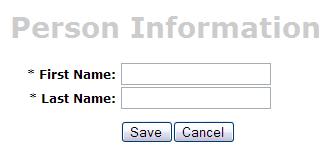
With JSF, everything is a post, so if you want to edit a user, you cannot get to them from a URL. To edit a person, add the following to the mainMenu.jsp:
    <h:commandLink value="Edit Person" action="#{personForm.edit}">
        <f:param name="id" value="1"/>
    </h:commandLink>
Then add a <navigation-rule> near the top of web/WEB-INF/faces-config.xml:
    <navigation-rule>
        <from-view-id>/mainMenu.jsp</from-view-id>
        <navigation-case>
            <from-outcome>edit</from-outcome>
            <to-view-id>/personForm.jsp</to-view-id>
        </navigation-case>
    </navigation-rule>
Finally, to make this page more user friendly, you may want to add a message for your users at the top of the form, but this can easily be done by adding text (using <fmt:message>) at the top of the personForm.jsp page.
[Optional] Create a Canoo WebTest to test browser-like actions [#6]
The final (optional) step in this tutorial is to create a Canoo WebTest to test the JSPs.
- I say this step is optional, because you can run the same tests through your browser.
You can use the following steps to test the different actions for adding, editing and saving a user.
- Add - http://localhost:8080/appfuse/personForm.html.
- Edit - Use the link you created on the Main Menu (make sure and run ant db-load first).
- Delete - Use the edit link above and click on the Delete button.
- Save - Click the edit link on the Main Menu (run ant db-load first if you deleted already) and then click the Save button.
Canoo tests are pretty slick in that they're simply configured in an XML file. To add tests for add, edit, save and delete, open test/web/web-tests.xml and add the following XML. You'll notice that this fragment has a target named PersonTests that runs all the related tests.
- I use CamelCase target names (vs. the traditional lowercase, dash-separated) because when you're typing -Dtestcase=Name, I've found that I'm used to doing CamelCase for my JUnit Tests.
|
After adding this, you should be able to run ant test-canoo -Dtestcase=PersonTests with Tomcat running or ant test-jsp -Dtestcase=PersonTests if you want Ant to start/stop Tomcat for you. To include the PersonTests when all Canoo tests are run, add it as a dependency to the "run-all-tests" target.
You'll notice that there's no logging in the client-side window by Canoo. If you'd like to see what it's doing, you can add tweak the log4j settings in web/WEB-INF/classes/log4j.properties.
Total time: 11 seconds
Next Up: Part IV: Adding Validation and List Screen - Explains the validation logic on the personForm and how the firstName and lastName are required fields. You'll also add a list screen to display all person records in the database.
Attachments:
| personForm-final.png |  |
4911 bytes |
|
Go to top
More info...
Attach file...
|
| This particular version was published on 06-Nov-2006 13:52:42 MST by MattRaible. |